 Kioskly
Docs
Everything Kioskly can do, screen by screen.
Home screen
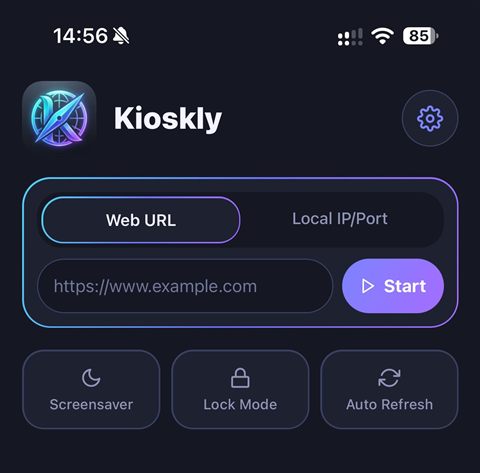
- Web URL
- Type a website address and tap Start. If you leave out the scheme, https:// is added for you. Only http and https addresses work.
- Local IP/Port
- For a device or server on your network: enter its IP address (for example 192.168.1.5) and, optionally, a port from 1 to 65535. It opens as http://IP:port.
- Start
- Opens the address full screen and adds it to Saved Kiosks.
- Screensaver, Lock Mode, Auto Refresh
- Shortcut buttons for the three most used features. A highlighted button means the feature is on. Screensaver and Auto Refresh switch on and off with one tap. Lock Mode asks you to set a 4-digit PIN (enter it twice); tap it again and enter the PIN to turn it off.
- Saved Kiosks
- Addresses you opened before, newest first (up to 20, one entry per address). Tap Launch to open one again. Tap Remove and confirm to delete it. The gear icon at the top opens Settings.
Settings, one by one
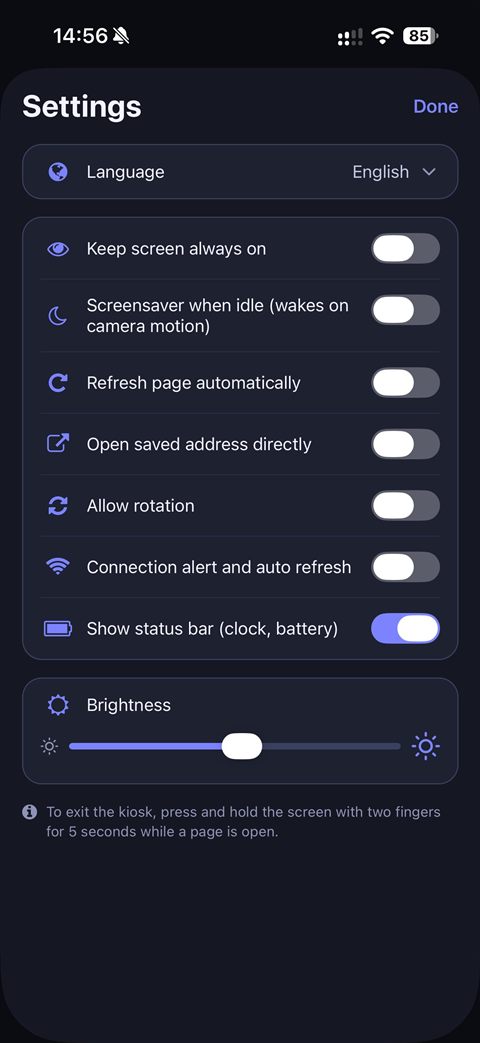
- Language
- Choose Turkish, English, German or Russian. Until you choose, Kioskly follows your phone language.
- Keep screen always on
- Stops the display from dimming and locking while a kiosk is open. It also stays on whenever the screensaver is enabled.
- Screensaver when idle (wakes on camera motion)
- After a period with no touch on the page, a black screensaver appears. A touch or movement in front of the camera wakes it. When you switch this on, more options appear: how many idle minutes (1, 2, 5, 10, 15 or 30), and what to show (date and time, a logo, or your own text). At least one content option always stays on.
- Logo (screensaver)
- Pick a picture from your photos. It is cropped to a square and shrunk. Tap Default to go back to the Kioskly logo.
- Text (screensaver)
- Your own message, up to 60 characters.
- Refresh page automatically
- Reloads the page on a timer so the content never gets stale. Choose 1, 5, 10, 30 or 60 minutes.
- Open saved address directly
- When the app starts, it goes straight into the last kiosk instead of showing the home screen.
- Allow rotation
- On: the page follows the device orientation. Off: Kioskly stays in portrait.
- Connection alert and auto refresh
- If the internet drops or the page fails to load, a notice appears. When the connection returns the page reloads. A page that failed is retried every 10 seconds.
- Show status bar (clock, battery)
- Shows the iOS status bar above the page, tinted with the site’s top color. Turn it off for a completely full-screen page.
- Brightness
- Sets the screen brightness while Kioskly is open. When you leave the app, your phone returns to its own brightness.
Kiosk mode
- Leaving the kiosk
- While a page is open, press and hold the screen with two fingers for 5 seconds. Lifting a finger, adding a third or moving more than a small distance cancels it.
- PIN
- With Lock Mode on, leaving the kiosk asks for the 4-digit PIN. The PIN protects exit only. If you forget it, delete and reinstall the app (saved kiosks and settings are removed).
- Stronger locking: Guided Access
- iOS does not let apps lock the device by themselves. For a true lock, turn on Guided Access in Settings → Accessibility, then triple-click the side button while Kioskly is open.